
A useful business card identifies your business, explains the contact's role and makes the next action clear. Printed cards need readable artwork and the printer's production specifications. A digital business card adds clickable contact routes and a shareable link. Match the identity across both formats, verify the details and test the handover before sharing.
Your business card should make it easy for someone to remember your business and contact you. A printed card gives them something to keep. A digital card gives them working contact links. You can use both, with the same business name, visual identity and verified details.
Use our brand identity planning guide to decide which materials your business needs. The examples below show how a visual identity can carry across the front and back of a card.
Dilame Holdings: carry the logo through the layout
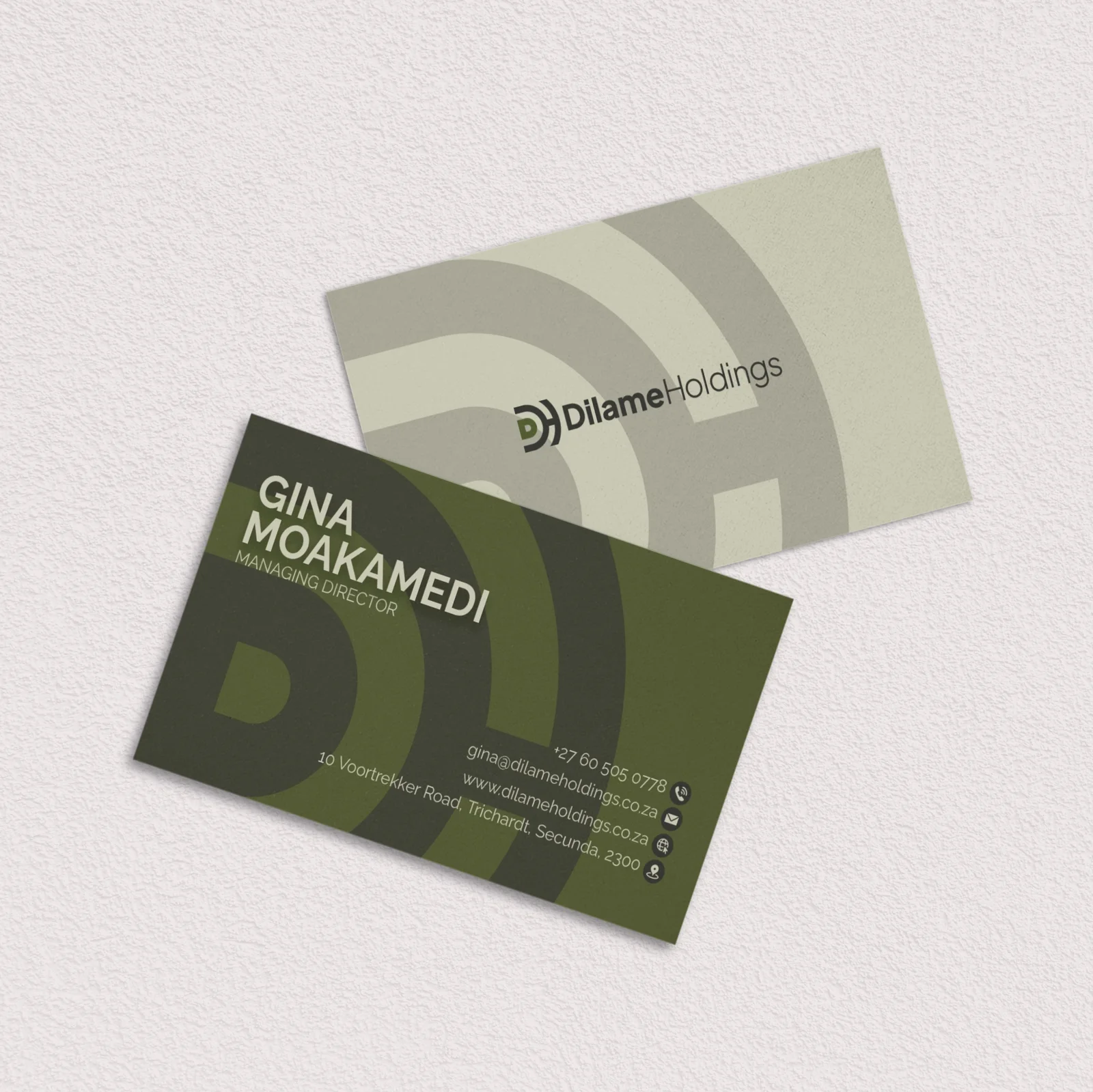
The Dilame Holdings mockup uses olive tones and enlarged shapes from the identity. One face gives the logo room. The other introduces the named contact and groups the contact information together.
The useful design lesson is repetition with a purpose: you can recognise the same business on either face. When reviewing your own card, check the name and role at actual printed size. A large mockup on a screen can make small contact text seem easier to read than it will be in your hand.
GoRide: explain the service before the conversation
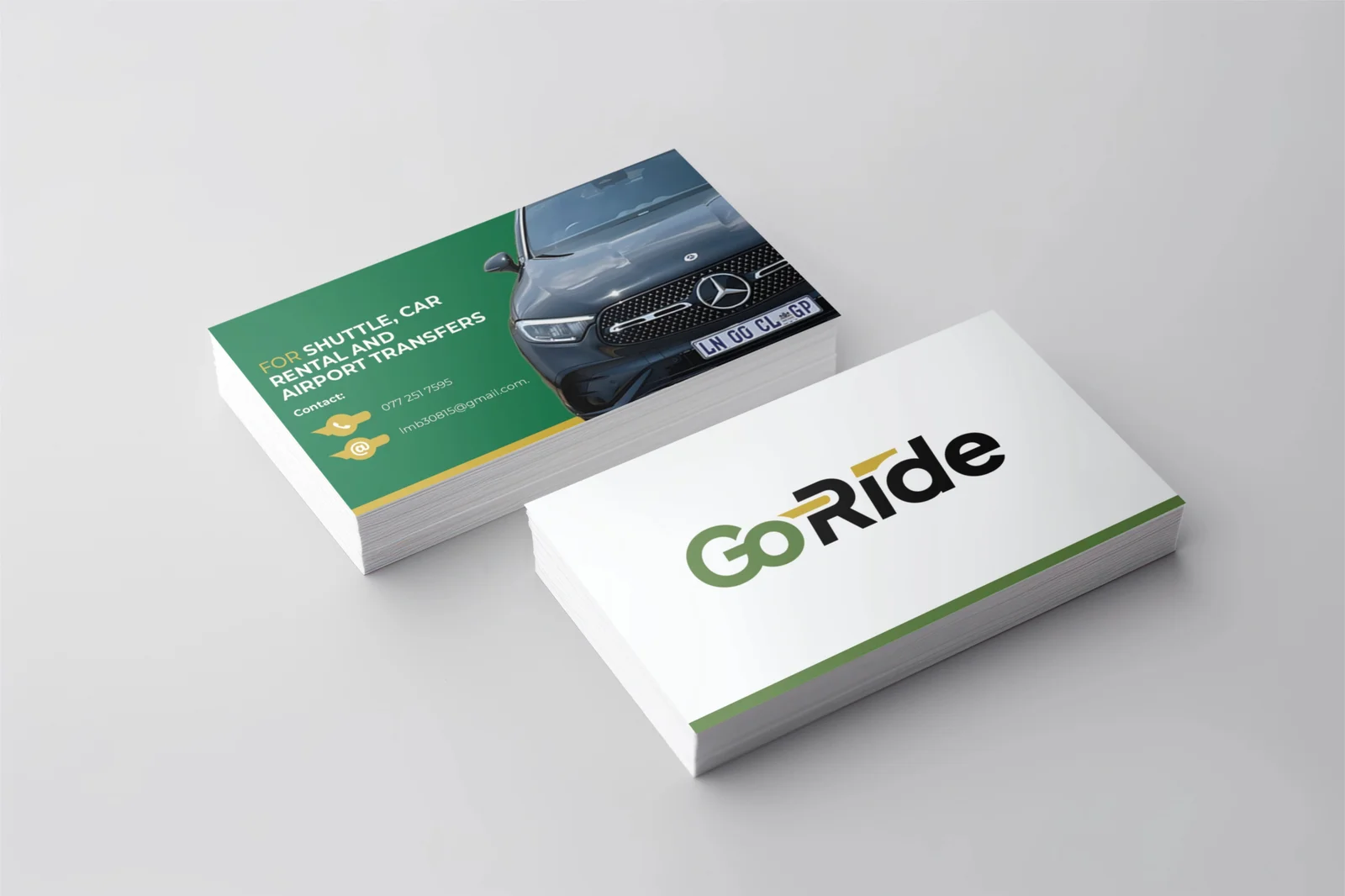
The GoRide mockup at the top of this article separates a clear logo face from a service face. The green side names shuttle, car rental and airport transfers and places the vehicle image beside that offer.
That approach helps a new contact understand the category of work. Your own card should explain enough for a recipient to remember why they took it. A short service description can be more useful than a slogan that does not identify the business.
Check whether the service description, image and contact information still work when the artwork is reduced to the printer’s finished size. Choose the most useful contact route instead of filling the card with every available account.
Hot Honey Pot: use a pattern without losing the contact details
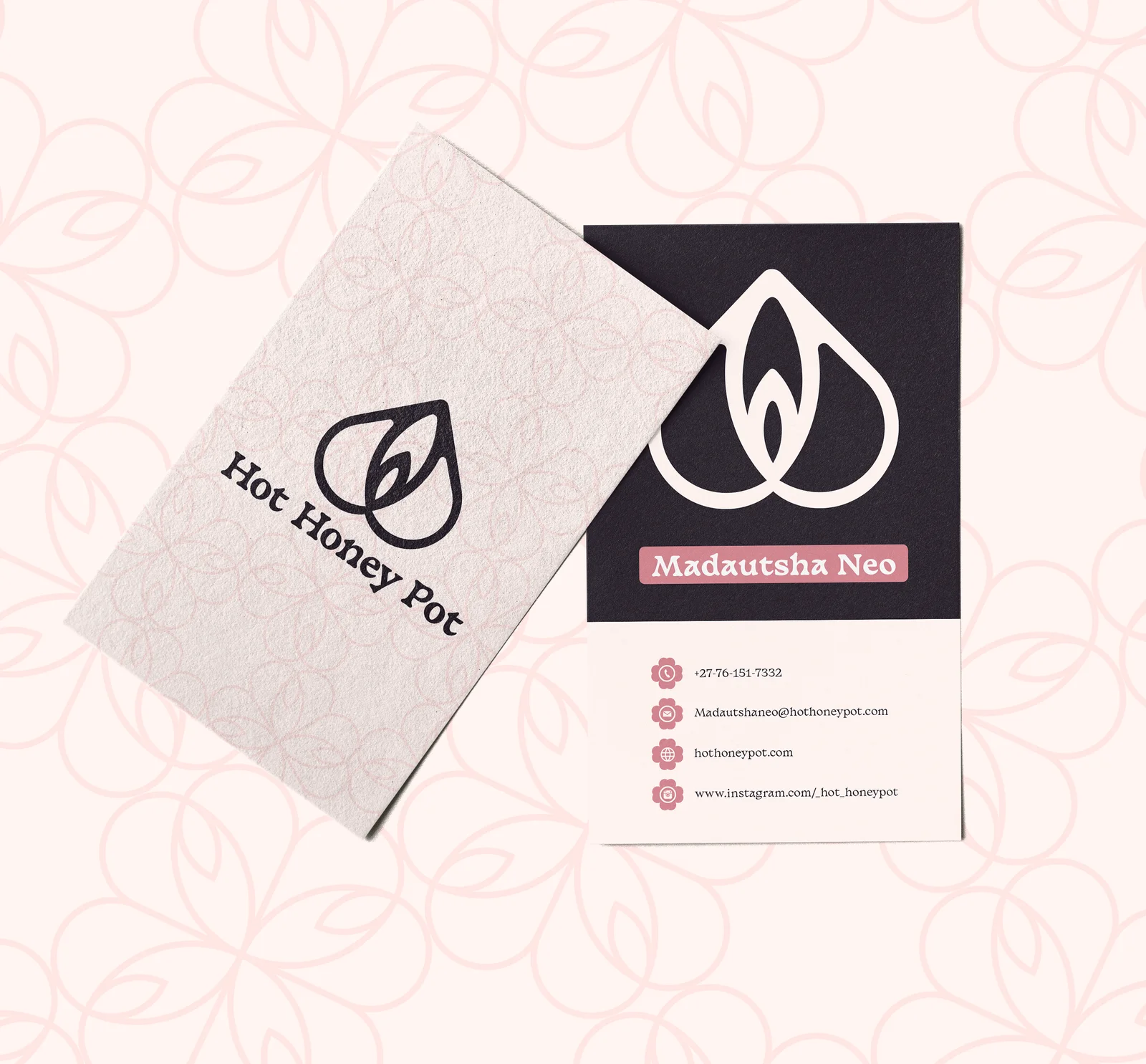
The Hot Honey Pot mockup repeats the brand symbol across the pale background. The contact face uses a dark upper panel and a lighter area for the details below it. Pink accents connect those parts of the layout.
You can use a pattern to extend a logo into a recognisable identity, but test it behind small text. The name, phone and email must remain legible. For the wider identity, see Hot Honey Pot’s bottle-label and stationery design. These supplied mockups show visible design choices; they do not establish customer response, print finish or current contact accuracy.
Approve a production file, not only a mockup
Before printing, confirm the finished dimensions, bleed, safe area, colour requirements and export format with your chosen printer. The specifications depend on the product and supplier. Ask the designer to prepare the artwork against those requirements.
Check every phone number, email address, website and spelling against an approved contact sheet. View a proof at actual size. If you include a QR code, scan a proof with another device and check its destination before ordering the full run.
The three images here show designs in context. They are not substitutes for production artwork. Keep the approved files and agree which exports you receive as part of the design handover.
Add a digital business card for link sharing
Create a free digital business card on IDJoy. Add your name, business, role and public contact details. Upload a logo to sample its colours, add a personal photo, and check the live preview. You can remove the photo background on your device. The creator gives you a shareable link, a downloadable QR code and a .vcf contact file.
The contact file follows the vCard format so a compatible contacts application can import the details. Import behaviour depends on the recipient’s app. Open a shared card on another device and test the contact actions before sending it to clients.
Choose how updates should work
| Format | What the recipient gets | What happens when details change |
|---|---|---|
| Printed card | Physical artwork and contact details | Changed artwork normally needs a new print run |
| IDJoy free creator | A link, QR code and downloadable contact | Create and distribute a new link; old links keep their version |
| Saved profile service | A hosted profile behind a stable address | Changes may update the existing address, depending on the service |
For example, Insly QR describes editable hosted profiles and dynamic QR links on its service page, checked on 13 October 2026. IDJoy’s free creator publishes a stored snapshot with a short share link. Choose based on your need to update cards you have already distributed.
Anyone with your IDJoy card link can view, forward or save the included information. Use contact details intended for recipients. Keep the private removal link to delete a published card and disable its shared link. Editing creates a new card; it does not update older links. The creator does not require an account or program an NFC card. Older cards encoded in links still work, but cannot be revoked.
Brief the design around the introduction you need
Bring your logo, approved contact sheet, service description and printer requirements. Decide whether the recipient should call, send a message or visit a page. Check that your website explains the same business as the card; our website trust checklist can help.
IDJoy’s branding service includes business card design as a separately scoped stationery item. Printing and additional applications need an agreed scope. Review the examples, then request the artwork and handover your business needs. If a shareable contact link is your immediate priority, start with the free digital card creator.