
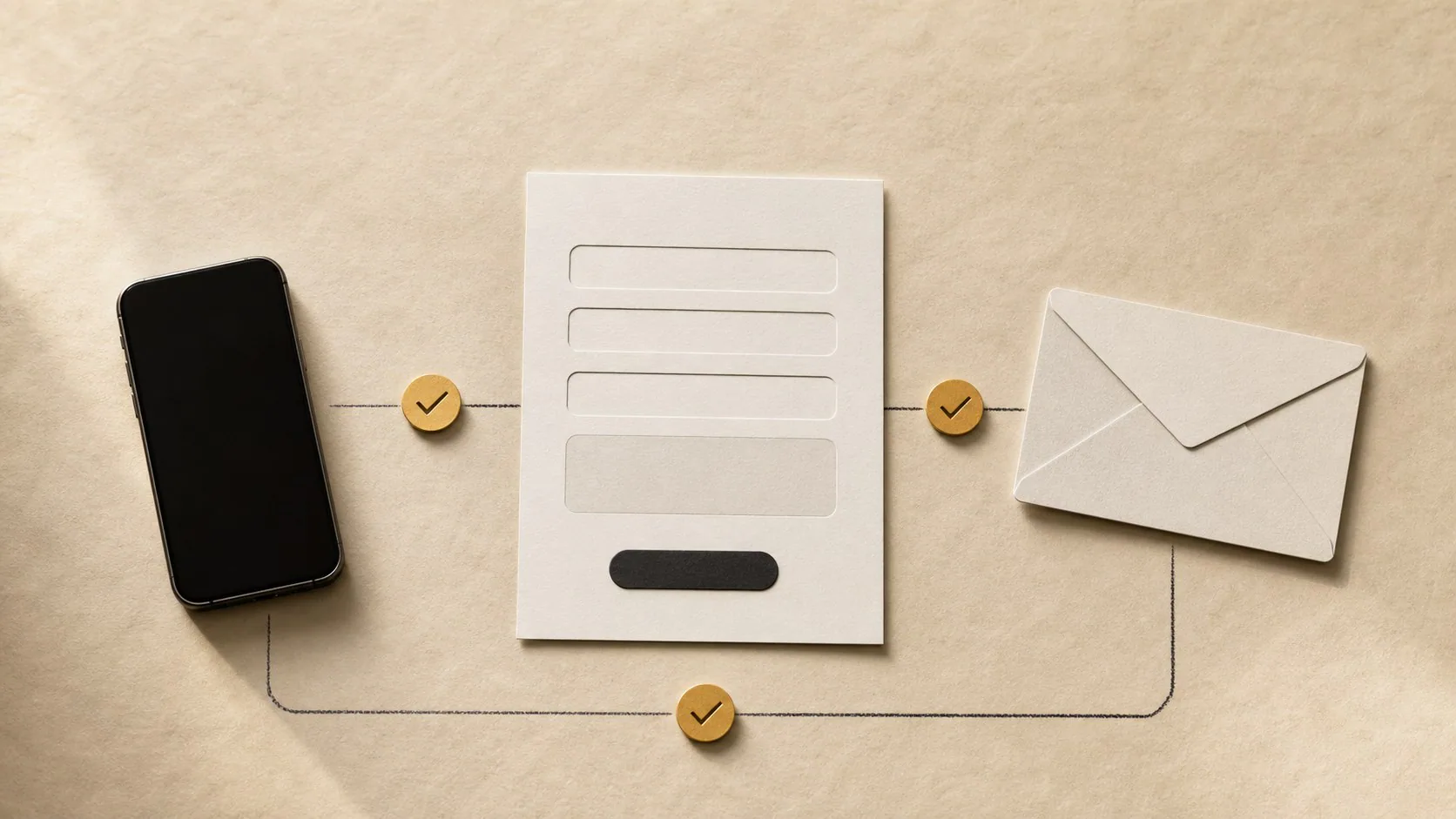
Your contact form may lose enquiries even when the page looks normal. Test it on a phone and computer, use two email providers, confirm the success message, check spam folders, inspect the received details and verify a completed submission in analytics. Add a phone or WhatsApp fallback so one failed form does not block a customer.
A contact form can show a green success message while the enquiry disappears before anyone reads it.
The customer thinks the message arrived. The business sees no email. Both sides move on.
A fifteen-minute test can expose the common breaks before a genuine prospect finds them.
Start with a controlled test
Open the website on your phone using mobile data. Do not use the office Wi-Fi for the first test. A different connection helps reveal security rules, cached pages and network restrictions that your normal setup may hide.
Complete the form as a customer would. Use a name that marks the test, such as Form Test 03 August, and write a message that includes every field you expect to receive.
Record these details:
| Check | Result |
|---|---|
| Page and device | Contact page, mobile |
| Time submitted | 09:15 |
| Email used | Gmail test address |
| Confirmation shown | Yes or no |
| Message received | Yes or no |
| Inbox folder | Inbox, spam or missing |
| Details complete | Yes or no |
| Reply address works | Yes or no |
Run the same test on a computer. Use a second email provider for the sender address, such as Outlook if the first test used Gmail.
Two devices and two providers give you a better test than pressing Submit twice from the same browser.
The success message must confirm a completed action
A button animation does not prove that the server accepted the message.
The form should show a clear confirmation after the submission service returns success. A useful message says that the enquiry reached the business and tells the customer what happens next.
For example:
Thank you. IDJOY received your enquiry. We will respond during business hours.
Avoid messages such as “Done” or “Success”. They leave the customer unsure about which action finished.
Test the failure state too. Switch off your connection before submitting, or use a staging copy with the form endpoint removed. The form should keep the customer’s text on screen and explain that the message did not send. A failed attempt should not erase five minutes of typing.
Check more than the main inbox
Search the receiving mailbox for the test name and submission time.
Then inspect:
- the main inbox;
- spam or junk;
- quarantine, if the company uses Microsoft 365 or Google Workspace;
- forwarding destinations;
- shared mailbox rules;
- CRM or help-desk records, if the form creates a lead there.
A forwarding rule can deliver messages to an old employee. A spam filter can quarantine the notification. A CRM integration can fail while the email notification still works.
The test needs to follow the complete route, not the first step.
Read the message as a person who must respond
Open the received notification and answer five questions:
- Can you see the customer’s name and preferred contact method?
- Can you reply to the customer without copying an address from the message body?
- Does the notification identify the page or service that produced the enquiry?
- Did line breaks and special characters survive?
- Does the message include private data that the business does not need?
A contact form should collect enough information to start the conversation. It should not collect identity numbers, banking details or long personal histories without a clear business need and a secure process.
Check the Reply-To header as part of the test. Many forms send notifications from the website domain but set Reply-To to the customer’s address. A broken Reply-To field creates a quiet failure: staff press Reply and send the answer back to the website system.
Confirm the form in analytics
Google Analytics can collect form_start and form_submit through enhanced measurement. Google recommends comparing form starts with submissions to find forms that create friction.
Open the Realtime or DebugView report while you submit the test. Confirm that the expected event appears.
Do not treat form_submit as proof that a lead reached the inbox. Some forms fire a submit event before the server returns success. Modern forms may also use JavaScript in a way that enhanced measurement does not capture.
The safest measurement records the successful server response or the thank-you state. Name that event generate_lead if the submission creates a genuine enquiry. Google Analytics uses that event in its lead acquisition reporting.
Your test therefore needs two separate answers:
- Did the website accept the submission?
- Did the business receive a usable enquiry?
Analytics answers the first question only when the tracking matches the real success state.
Test the fields that often break
Use entries that expose formatting problems:
- a South African number with
+27; - a name with an apostrophe or hyphen;
- an email address with a plus sign;
- a long business name;
- a message near the stated character limit.
Test required fields and invalid entries. The error message should sit beside the field, explain the correction and remain readable on a phone.
Also press Submit twice. The form should prevent duplicate messages while the first request runs. A slow connection can make a customer think nothing happened.
Give customers another route
A form should not control the only doorway into the business.
Place a direct email address, telephone number or WhatsApp option near the form. State the expected response window. A customer who cannot submit should have a clear route that does not require searching the footer.
The fallback needs its own test. Click the email address. Open the WhatsApp link. Call the number.
Repeat this test after changes
Run the test after:
- changing the form service;
- moving the website;
- updating DNS or email hosting;
- adding spam protection;
- redesigning the page;
- changing the receiving mailbox;
- installing a cookie or analytics tool.
A monthly form test also makes sense for a website that produces regular leads. Record the result in a short maintenance log so the business can see when the route last worked.
The fifteen-minute test sheet
Use this sequence:
- Submit on a phone over mobile data.
- Submit on a computer with another sender address.
- Confirm a clear success state.
- Search inbox, spam, quarantine and CRM.
- Reply to the received message.
- Check every expected field.
- Confirm the success event in analytics.
- Test invalid data and a double click.
- Open the fallback contact route.
- Record the date and result.
A working form removes uncertainty for the customer and the business. Test the whole route before you spend money sending more visitors to it.
IDJOY designs and tests enquiry paths as part of a website build. You can start a website enquiry with the service, timeline and budget range that fit your project.